
Saved 0Your basket —
Buying advice ↗
YOUR BUILD, THOUGHT THROUGH

Keep the ideas.
Make a useful plan.

Your Build keeps the upgrades and original-equipment details together, ready for one fitment and pricing request.

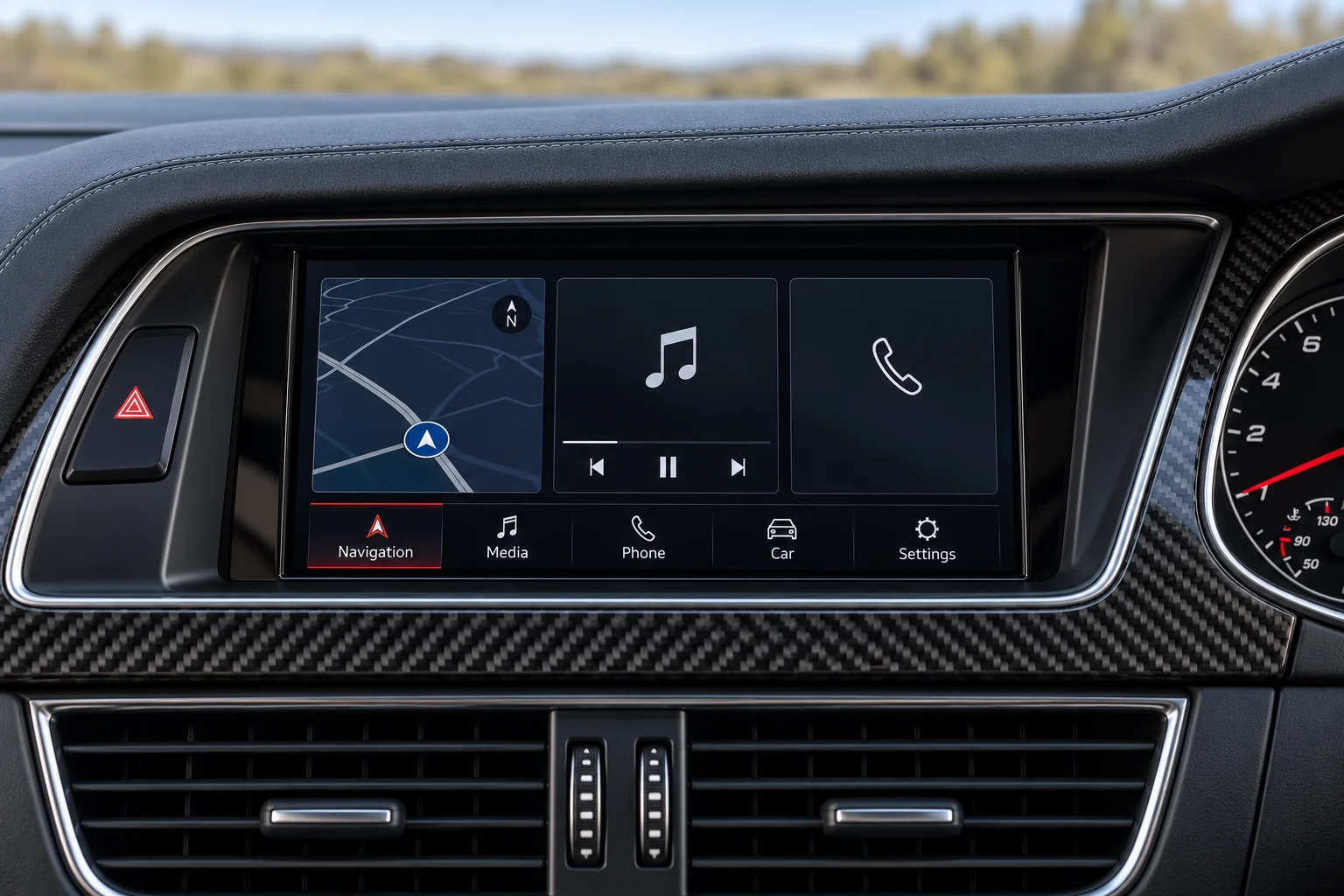
Audi RS4 Avant B8 screen detail
The exact unit depends on your original equipment.
FROM BROWSING TO A BRIEF

A little detail
makes the difference.

You can start without knowing every system name. Keep the known details accurate and mark the rest as uncertain.

  1. 01

    Confirm the car.

    Use the registration finder or enter the details yourself. Check the returned make, model and year before continuing. Add a generation or body detail only if you know it.

  2. 02

    Choose a range and its original setup.

    Open an upgrade and choose the equipment fitted now. Each range has its own setup; the centre screen and instruments may need different details.

    Browse the upgrade ranges ↗
  3. 03

    Review the whole plan.

    In Your Build, edit an item’s setup, adjust its quantity or remove it. State your priorities and questions in the request message so they can be reviewed together.

IDEAS AND DECISIONS

Save an idea.
Configure the brief.

Use the heart when you are still browsing. Use “Choose your setup” when you want to keep a range with its equipment details in Your Build.

Saved upgrades

A list of range ideas to return to. Saving a range does not configure it or add it to a fitment request.

See saved upgrades →

Your Build

Selected ranges with quantities and original-equipment choices, ready to review before requesting fitment and price.

Review Your Build →
SAY WHAT YOU WANT TO CHANGE

Two useful ways
to write the brief.

These are example requests, not product recommendations or confirmed installations.

EXAMPLE / KEEP THE ORIGINAL DISPLAY

Phone integration first.

“I would like phone maps and music on the original screen. I want to keep the factory camera and steering controls. I’m not sure which factory system I have, but I can provide menu photos.”

Why it helps: the goal, the functions to check and the missing information are all clear.

Start with CarPlay interfaces →
EXAMPLE / A WIDER CABIN PLAN

Screen and instruments together.

“I’m considering a centre-screen change and digital instruments. Please check them as a combination. I want to understand what navigation information can appear on each display and what fitting is needed.”

Why it helps: it asks for the interaction between upgrades to be checked instead of assuming it.

Explore the upgrade types →
IF THE PLAN CHANGES

A different car needs
a fresh setup check.

Your selection is kept during this browser session. If you change to another car, review the selected ranges and configure the equipment again. A setup from the previous car is not evidence of fitment for the next one.

Keep a copy of important notes elsewhere if you need them later. A session build is a useful working list, not an order confirmation.

BEFORE YOU SEND

A short final review.

Tick these as you check the request. This guide’s checklist stays on this page; the actual request is sent from Your Build.

WHAT THE REQUEST MEANS

Fitment and price
come before an order.

The request brings your vehicle and selected ranges together for review. It does not reserve stock, take payment or approve compatibility.

What to resolve before ordering

The exact hardware, included accessories, original functions retained or excluded, installation responsibilities and total price. Ask for any unanswered point to be clarified before committing.

You can keep browsing while the details are being worked through. A broad range is the starting point for a specification.

PUT THE PLAN TOGETHER

Ready for a closer look?

Review the selected ranges and equipment, then send the request from Your Build.

Review Your Build →Keep exploring ↗
01 / YOUR CAR

Find your car.

One registration. A clearer starting point for your next upgrade.

Saved for this visit. How we use your registration.

UP NEXT

Choose what you’d like to upgrade. We’ll check the original equipment before confirming exact hardware.

POISD.Find parts for my car
Make it your upgrade

Choose your setup.

upgrade hardwareExact hardware varies by vehicle.
Your vehicleAdd your car

Tell us what’s fitted now. We’ll check the exact unit, fitment and price for your car.

See vehicle / generation examples (optional)

Choose only a generation you recognise. Your registration result stays unchanged.

Fitment & price confirmed before an order.

Your upgrade selection

Your basket.

Keep your chosen upgrades and original setup together.

A good build starts here.

Choose an upgrade, add your setup and save it to your basket.

Shop the range →
Side by side

Find your route.

Compare the purpose and original-equipment checks for each upgrade.

Check the details

Tell us about your setup.

We’ll help identify the right hardware and confirm the specification before an order.

Know your original setup? Add the details (optional)

We use these details to review your enquiry. Please don’t include payment details. How we use your information.